Thursday, August 14, 2014

Modularize BEx Exit Variables in just 5 easy Steps

Key Concept

SAP provides a single user exit where we need to write code for the exit variables . Over the lifecycle of the BW as the requirements of Exit variables evolve this exit become a very long piece of linear coding which is very difficult to maintain and troubleshoot . This article describes the method to modularize coding of exit variables that are easy to maintain and troubleshoot in a distributed development environment .


INTRODUCTION: 
SAP delivered source system user-exits allow us to calculate values for BEx Variables with processing type “Customer Exit”. With CMOD you can activate Enhancement RSR00001 “BW: Enhancements for global variables in reporting”. In Function Module EXIT_SAPLRRS0_001 you have to write code within Include ZXRSRU01.


For example  in a productive system it would look like 


It is quite common having more than one thousand rows of ABAP code in the same Include, written by different developers. Transport management can be challenging especially when you have large number of BEx Variables and different people or teams are working on the user-exits. Object may be locked by someone else while you are trying to incorporate an urgent fix to resolve a production issue. This leads to reversal of code and retesting of the variables / code which are redundant and unproductive. 

How it Works


The main logic here proposed is having a dynamic CALL FUNCTION to a different Function Module for each BEx Variable.
The name of the Function module for variable exit should have a naming convention as follows,

ZVAREXT_XYZ_ABC

 XYZ = Infoobject Name,

 ABC = Variable Name

So a exit variable ZVAR2 on info object  ZME_CUST would have the Exit Function Module name is as follows,
ZVAREXT_ZME_CUST_ZVAR2


Below are the 5 Steps to modularize this EXIT


1.      Create a Variable 'ZVAR2', of type Customer Exit on top of the Infoobject 'ZME_CUST' in the query              
"ZQRY_DEMO_EXT" . In the query designer 


2.     Go to tcode, SE37 - ABAP Function Modules create a new Function Group by selecting the menu options,

Goto -> Function Groups -> Create Group


In Global Data of the include "LZBEXVAR_001TOP" make the following declarations,


3.     Create a Function Module  ZVAREXT_ZME_CUST_ZVAR2 (As per the naming convention prescribed above)   in this function group with  the following requirements concerning importing and exporting parameters
    Note – Note that these Import and export parameter are the same as of exit Enhancement RSR00001

Importing Parameters,


Exporting Parameters,


4.     Within each Function Module you can code the same logics you would have placed in Include ZXRSRU01.


For example in this case we have put the logic that it ZME_CUST  should be EQ 2 


After coding the required logic activate our function module "ZVAREXT_ZME_CUST_ZVAR2".

5.  Replace the code in Include ZXRSRU01 with the below code,

DATA: FM_NAME TYPE c LENGTH 100,
          CHAR_NAME 
TYPE c LENGTH 20,
          VAR_NAME 
TYPE RSZVNAM,
          tb_RANGESID 
TYPE RSR_T_RANGESID.

VAR_NAME = I_VNAM.
CHAR_NAME = I_IOBJNM.

CONCATENATE 'ZVAREXT' '_' CHAR_NAME '_' VAR_NAME INTO FM_NAME.

 TRY.

CALL FUNCTION FM_NAME
  
EXPORTING
    I_VNAM              =  I_VNAM
    I_VARTYP            =  I_VARTYP
    I_IOBJNM            =  I_IOBJNM
    I_S_COB_PRO         =  I_S_COB_PRO
    I_S_RKB1D           =  I_S_RKB1D
    I_PERIV             =  I_PERIV
    I_T_VAR_RANGE       =  I_T_VAR_RANGE
    I_STEP              =  I_STEP
 
IMPORTING
   E_T_RANGE           =  E_T_RANGE.

  CATCH CX_SY_DYN_CALL_ILLEGAL_FUNC
          CX_SY_DYN_CALL_ILLEGAL_TYPE
          CX_SY_DYN_CALL_PARAM_MISSING
          CX_SY_DYN_CALL_PARAM_NOT_FOUND.
  ENDTRY.


In the above code the following logic is done,

a.     The Function module name is obtained by concatenating 'ZVAREXT', base Infoobject name and the Variable name.
b.    The existence of the exit function module is checked using the function "FUNCTION_EXISTS".
And if the Exit Function exists, it is executed by passing the required parameters.

Check working of the Varible :
              Go to the tcode: RSRT, and execute the query after the query name as" ZQRY_DEMO_EXT",


As per the above query result, since in the function module for the variable "ZVAR2", the Customer characteristic is filtered only to "C002", only that particular value is displayed.
When adding a new exit variable all we need to do is create a new function module with the prescribed naming conventions

ZVAREXT_XYZ_ABC

 XYZ = Infoobject Name,

 ABC = Variable Name

CONCLUSION:
This was different developers are able to create separate function modules for different variable variables streamlining the development and maintenance. 


This blog is about the SAP BW Integrated planning scenario for implementing the 'Bottom Up Planning' approach, which involves the planning manager's approval for each of the planning end user's planning entry.
This weblog deals with a sample scenario to implement "Bottom up Planning" using SAP BW Integrated Planning concepts. Even though already we have a concept called "Status Tracking system" in SAP, I felt that it was difficult to configure and use it. Hence when I got the requirement to implement "Bottom Up Planning", I tried to implement it completely using existing SAP BW IP concepts itself.
The work flow of "Bottom up Planning" is as follows,
1. The Sales Director initiates the planning process by sending e-mail notifications to regional Sales Managers in his region.
2. The regional Sales Managers enter plan data and request the Sales Director to approve the estimates.
3. The Sales Director either accepts or rejects the submitted plans.
4. When a plan is rejected the responsible regional Sales Manager is requested to revise the first plan estimate until the Sales Director accepts the plan.
5. When all planning tasks are approved the planning session is finished.


The solution for implementing the above workflow using BW IP is as follows,
1. Include a characteristic '0version' in the planning cube, which is used to maintain planning versions. Use this info object to track the planned records status (for eg., approved or not).
2. Also include a keyfigure 'ZSTATUS' of type "Numeric" to track the Planning records approval from planning head. As the planning users change \ plan the records (with 0version = plan1), the planning head opens the same records using another query, where in he is able to enter '0' (not approved) or '1' (approved) for the planning records.
3. Now use "Formula" planning function to copy only the values with your key figure value = '1' because you want to copy only the approved records to 0version 'plan'.
The characteristic to be changed is 'Version'. The key figure name is selected as the characteristic for conditions. 'ZSTATUS' should be selected as the value for the key figure name. The following formula copies the revenue from plan 1 to plan if the 'ZSTATUS' in version plan1 is equal to '1'. We cannot implement the planning function of type Copy in this example as it is not possible to formulate conditions for key figure values here. It is generally an advantage to use the special planning functions rather than formulas as these are implemented more efficiently.
The sample formula is as follows,
IF {kyf name,plan1} = 1.
{kyf name,plan} = {kyf name,plan1}.
ENDIF.   
For writing formula FOX code, please refer to the following link,

http://help.sap.com/saphelp_nw70/helpdata/en/44/21de357641648fe10000000a1553f7/frameset.htm

Monday, March 10, 2014

Bex prompts in SAP Business Objects Dashboards 4.1


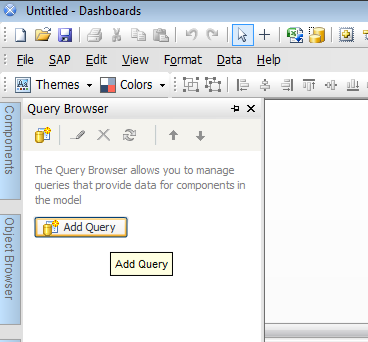
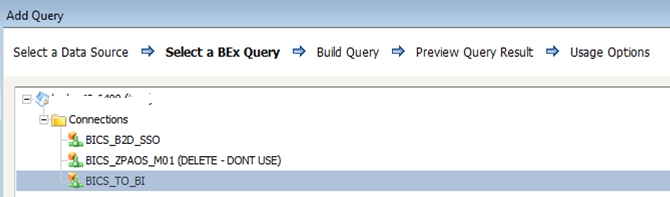
First create a BICS connection to BW either in Central Management console or Information design Tool.


Using BICS connection, connect to your BEx Query on which you want to build dashboard.


Select the BICS Connection


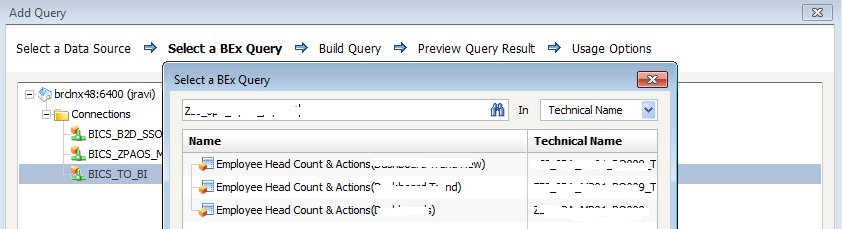
Select the BEx Query and drag the required dimension and key figures into Result objects.


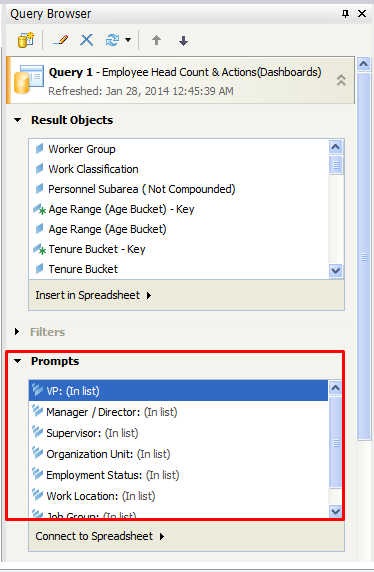
Select Query, Then in Query Browser there you will find the Result Objects , prompts , Filters which are coming from Bex Queries.


.


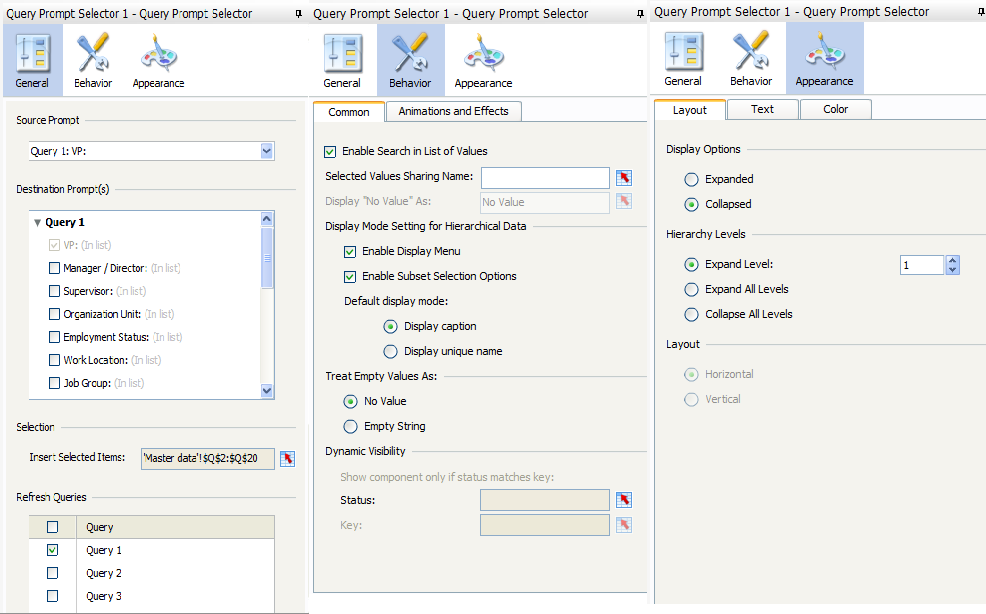
Now, Use a “Query Prompt Selector “ Component from the Components list available.


Use as many Query Prompt selector as you have in Bex Query. Then, Add these components to a Canvas Container. Below shown are the properties of Query Prompt Selector Component.


NOTE: If you have any Hierarchy node Variable with dependency and no default value then other variables will be grayed out. To overcome apply the below setting in CMC - Dashboard processing server.


For more information, Refer SAP Note -1711564.


Tuesday, March 4, 2014

How to achieve filtering of data without the dependency on other
Considering the following Dataset, we will filter the data using Filter Component and Combo Box in SAP Business Objects Dashboards 4.1
Customer
Material
City
Sales org
Quantity
Price
John
Laptop
Bangalore
1000
10
5000
John
Laptop
Chennai
2000
10
5000
John
Charger
Bangalore
1000
50
1000
Steve
Laptop
Bangalore
1000
50
25000
Steve
Charger
Chennai
2000
100
2000
Mathew
Laptop
Mumbai
3000
10
5000
Mathew
Charger
Chennai
2000
50
1000


Filter Component
Filter component in SAP Business Objects Dashboards 4.1 behaves as the filter in Excel. (It filters all the records on the given criteria).
When data is filtered on Customer- John, then Material Filter shows both Laptop and Charger but Location Filter shows only- Bangalore and Chennai and no Mumbai (when Material is Laptop) because there is no record for John where corresponding City is Mumbai.


Figure 1


Figure 2


Figure 3
Disadvantages of using this Filter Component
  1. Default Label Selection cannot be done. Hence all records do not appear initially.
  2. “All” Functionality cannot be implemented using filter component.
  3. Selected label component will not be displayed in the output.(e.g.- Customer, Material , Location)
Combo Box
To filter the given data set, on one column without depending on others. We use combo boxes.
How to filter data without the dependency on other using Combo Box?
  1. Create a Master data for all the dimensions on which you wish to apply the filter with a All value on the top.
Example: - Customer Master Data with “All” on top.
  1. Create Combo Boxes with Labels as Master data, Insertion Type as Label, and Destination as some cell.


  1. Create a Column for displaying all values by default and also for filtering data without dependency on other.


Column(All Values)=IF($B$16=B2,B2,"All")&IF($C$16=C2,C2,"All")&IF($D$16=D2,D2,"All")
‘B16’, ‘C16’ and ‘D16’- Destination cells of combo box.


  1. Now, for Hidden Combo Box, Use the column mentioned in Step 3 as Label. And create a cell where the destination cells of other three combo boxes are concatenated.


Cell( Concatenation)=IF(B16="","All",B16)&IF(C16="","All",C16)&IF(D16="","All",D16)
‘B16’, ‘C16’ and ‘D16’- Destination cells of combo box.
For more Information,Download the Xlf from the below Link

https://www.dropbox.com/s/k7tnf1cq020gwqd/Dashboard%20Sample.xlf